SAP with Basement Gateway
How it works
There are four parts. You use only the first part.
- You sign in to the app with your e-mail. The app shows the VPN. You create the connection with the data of the system and your SAP user.
- The app registers your computer with the Gateway. The app gives the network path: all data to SAP goes through your computer and the VPN of the customer. This is the same path that SAP GUI uses.
- The SAP server is in our cloud. It opens the SAP session with your user and reads what the AI asked for. Only the SAP server can open your password.
- The Gateway is the door for the AI. Claude, ChatGPT or Claude Code sign in with your login and ask for a read. The Gateway checks the permission, sends the read to the SAP server and returns the answer.
What must stay on
The AI can read SAP only when these three conditions are true at the same time:
- Your computer is on.
- The app is open.
- The VPN of the customer is connected.
Your computer is the only part inside the network of the customer. Without it, there is no path.
The connection is not lost in these conditions. The app keeps it and uses it again by itself. The app does not keep the password in clear text. If SAP refuses the password, the app asks for it again.
Where the data is
What you need
The Gateway only reads. No tool creates, changes, activates, runs or deletes data in SAP. The Gateway never reads tables with passwords, keys or personal data (USR*, USH*, RFCDES, PA*).
Step by step
Install the app and sign in
Download the app. Open it. Sign in with the invited e-mail and the code. See Install and sign in.
Connect the VPN
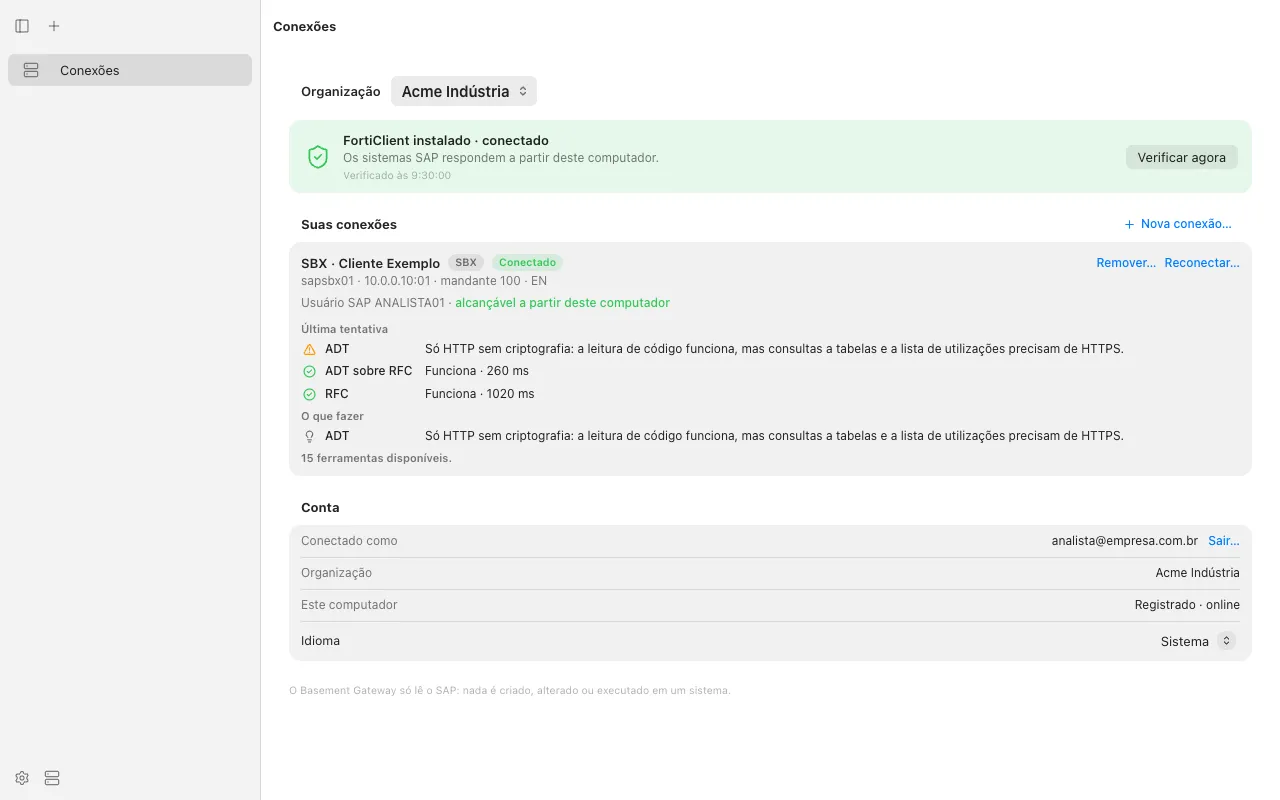
Connect the VPN of the customer. The card at the top of Connections shows “connected”.
Create the connection
Click New connection…. Enter the data of the system as in SAP Logon. Set the logon language to EN. Enter your SAP user and password. Click Create and connect. The app shows the result for each method. See Connect a SAP system.
Connect Claude
In Claude, add the connector https://mcp.basement.chat/mcp. Sign in with the same e-mail. On the approval, select the organization and an access level with SAP read. See Use it with Claude.
SAP is only for AI agents through MCP. The HTTP API and the SDKs do not offer SAP. A SAP system is reached only through the app on the computer of an analyst, with the VPN of the customer. A program has no such path.