

Connect a SAP system
1. The VPN
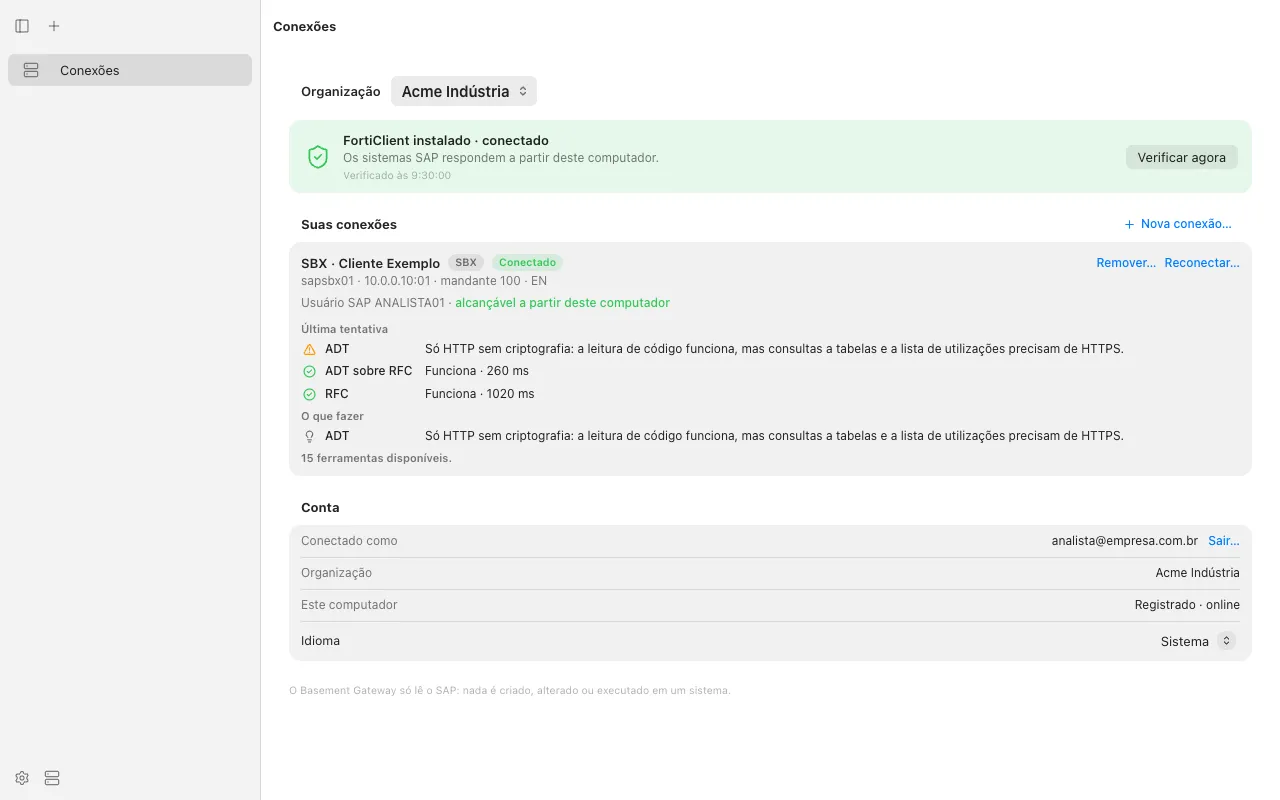
After you sign in, the card at the top of Connections shows what the app found on your computer:
When a connection exists, the card also tests the address of the system through the VPN. The result is “reachable from this computer”.
2. New connection
Click New connection…. Enter the data of the system of the customer. The data is the same as in SAP Logon.
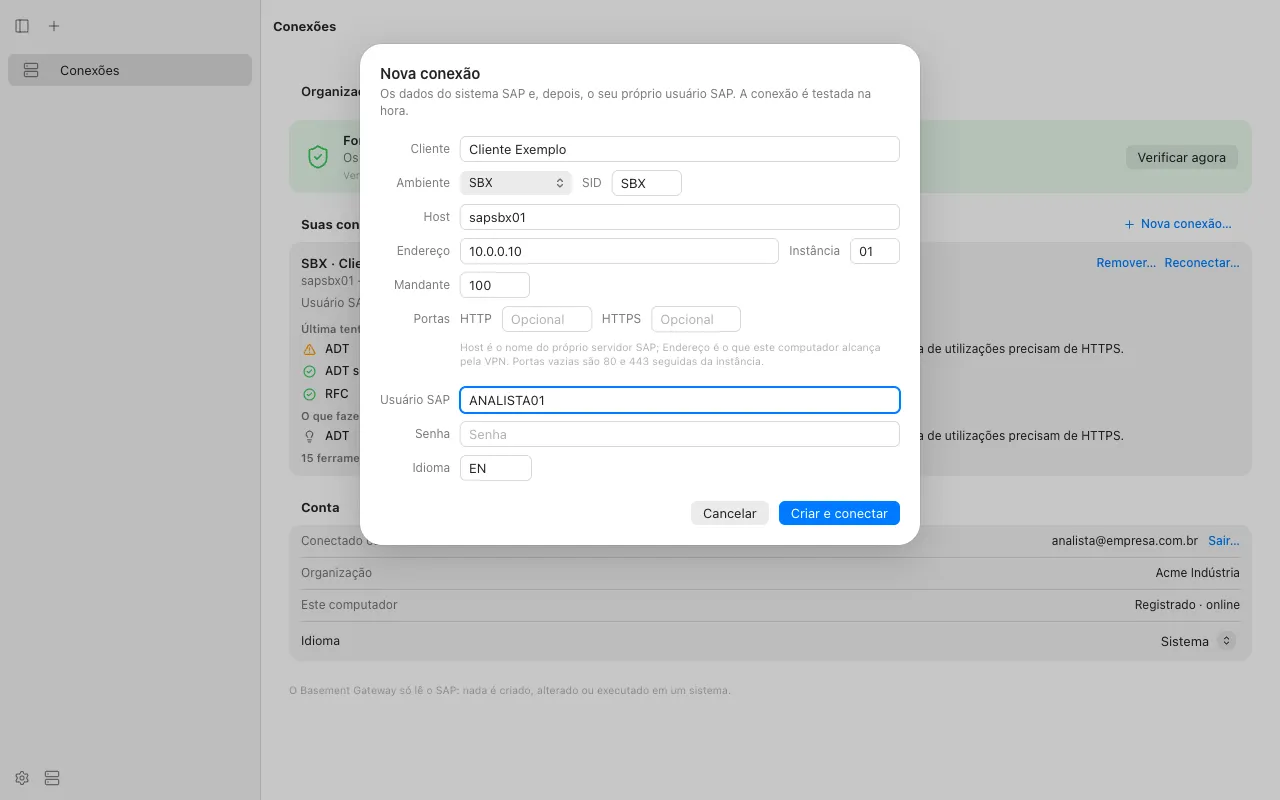
Click Create and connect.
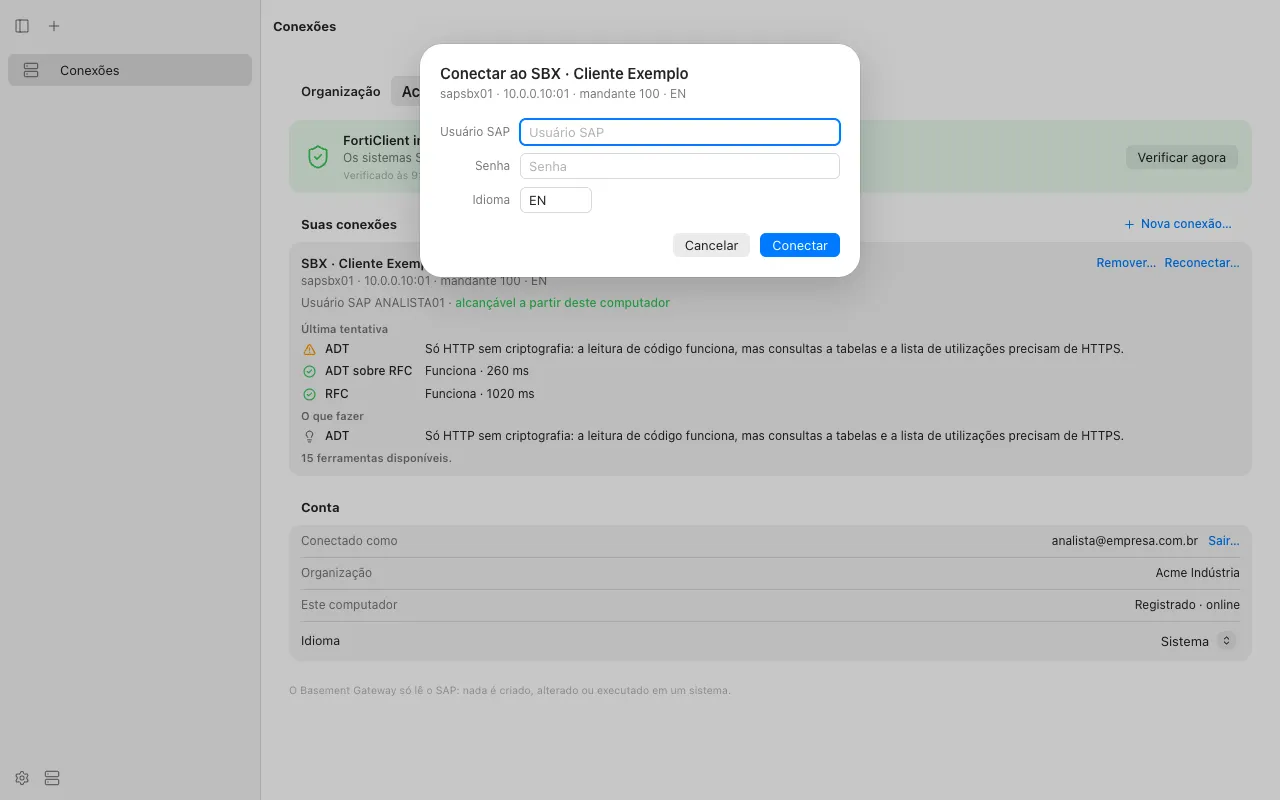
If a member of the organization saved this system before, the system is in Saved systems. Click Confirm. Enter only your user and password. Then connect.
3. The result
The app tries all the connection methods. It shows the answer of each method:
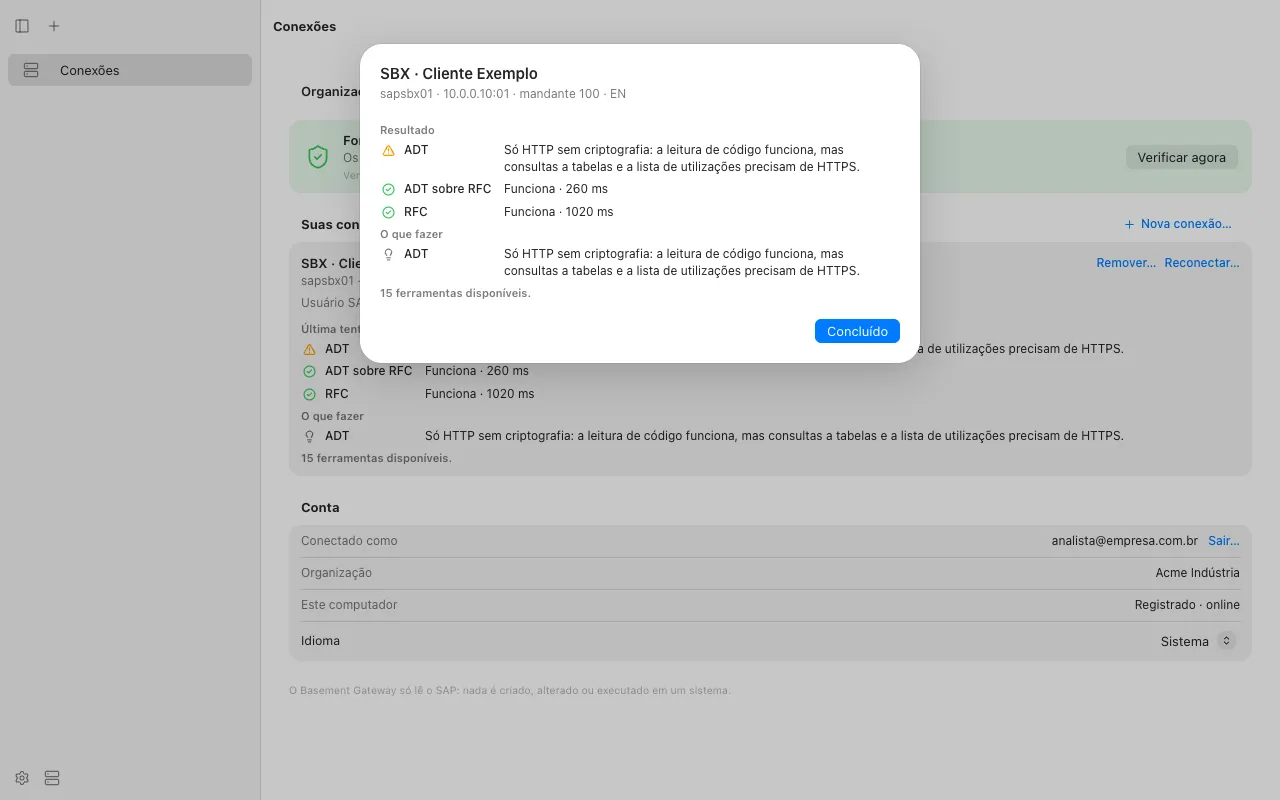
The connection is ready when one method works. The last line shows the number of available tools. When RFC works, there are 15 tools. Claude can read the system now. See Use it with Claude.
The connection is on your computer and in the organization in which you created it. To use the connection, keep the app open and the VPN connected. If one of them stops, the AI gets “the analyst’s computer is offline” or “the VPN is down”. When you start them again, the connection works again by itself.
Reconnect, change the language, remove
- Reconnect… asks for the user and the password again. The app never stores the password in clear text. Use Reconnect… also to change the logon language of a connection.
- Remove… removes the connection from this computer. If the system was saved, it stays in the organization.