

When it does not connect
Each message of the app or of the AI, its cause, and what to do.
The app and the AI always show what happened and what to do, with the same words. The table below gives the usual causes, in the order in which they occur.
On your computer and on the VPN
| Message | Cause | What to do |
|---|---|---|
| The VPN is disconnected on this computer | The VPN client disconnected, or it was not connected. | Connect the VPN. Click Check now. The connection works again by itself. |
| The analyst’s computer that carries the connection is offline | The app is closed, or the computer is off, or the computer has no internet. | Open the app. The app connects to the Gateway in seconds. |
| The system did not answer through the connection / port closed | The VPN does not reach the address or the port. | Check the Address and the Instance of the connection. If they are correct, the Basis team must open the port. See Connection types. |
| This system is not confirmed on this computer | The connection was created on another computer or on the site. This computer did not confirm it yet. | In Connections, confirm the system under Saved systems. |
| No computer of yours is registered for this system | You did not sign in to the app on a computer, or you removed the registration. | Install the app. Sign in. Create or confirm the connection. |
At the SAP logon
| Message | Cause | What to do |
|---|---|---|
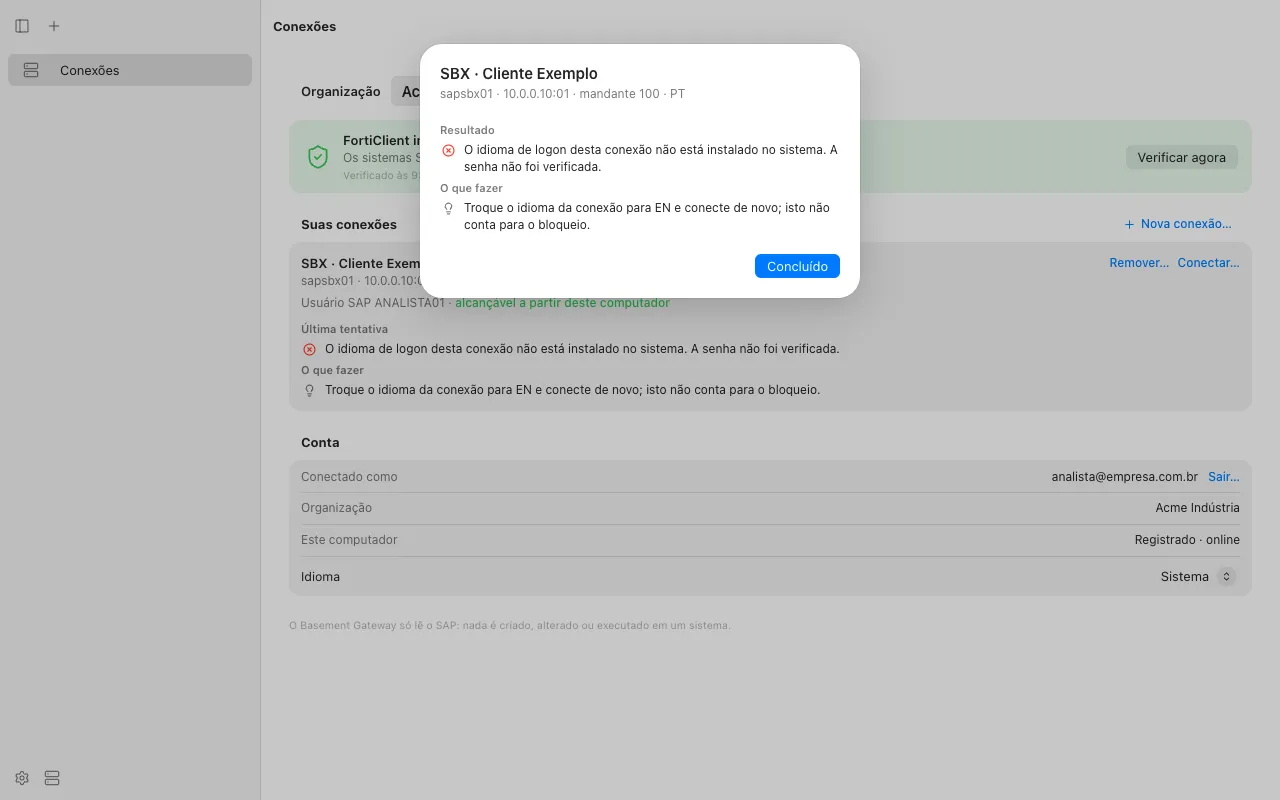
| The connection’s logon language is not installed on the system. The password was not checked. | The connection asks for PT or another language. The system has, for example, only English and German. SAP refuses the logon before it checks the password. This attempt does not count for the lock of the user. | Under Reconnect…, set the logon language to EN. Connect again. |
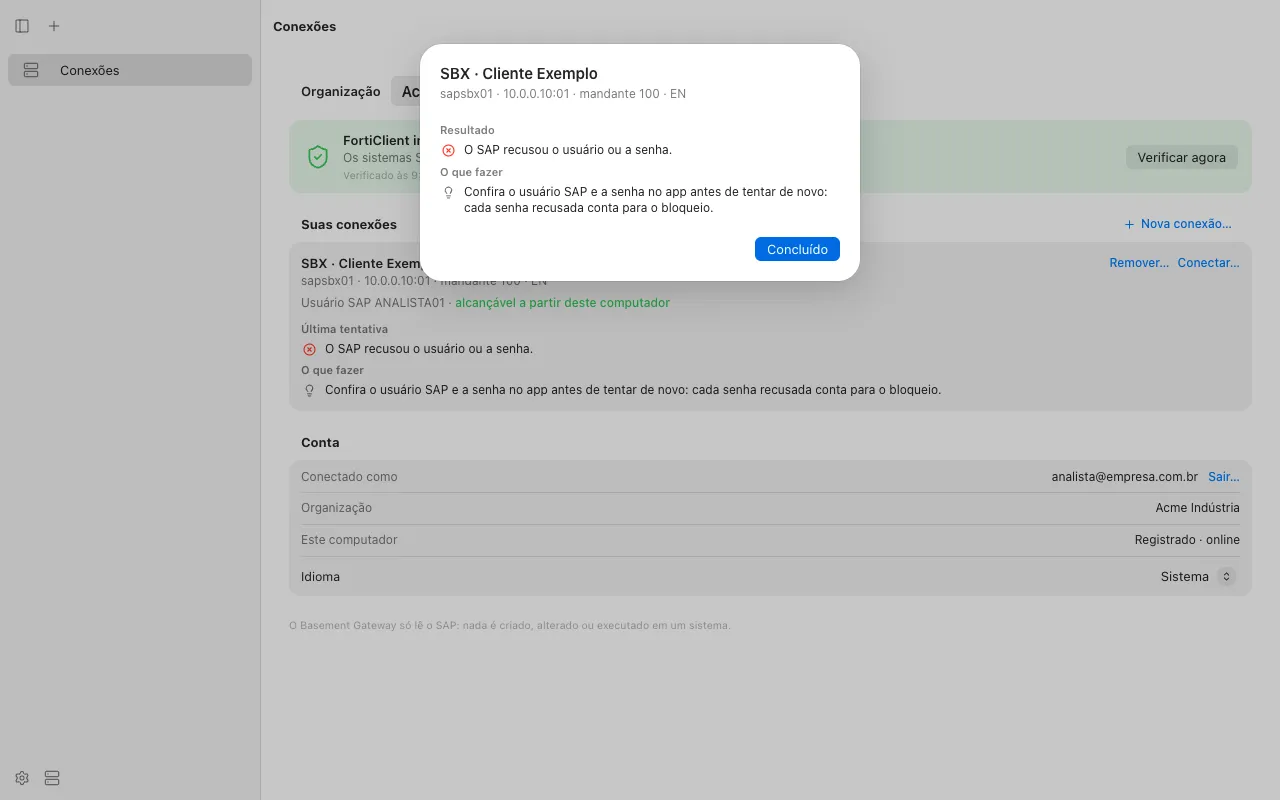
| SAP refused the name or the password. | The user or the password is not correct. Check Caps Lock. Each wrong password counts for the lock of the user in SAP. | Check the user. Enter the password again with care. Do not repeat the attempt without a check. |
| The SAP user is locked, or password logons are no longer allowed for it. | The user is locked (after wrong attempts, or by the Basis team), or the user cannot log on with a password. | Do not try again. Ask the Basis team of the customer to unlock the user (SU01). Then enter the password in the app. |
| The stored credential could not be used | The sealed credential belongs to a different person or to a different system. | Enter your user and password again under Reconnect…. |
After the connection
| Message | Cause | What to do |
|---|---|---|
| HTTP only, no encryption (ADT) | The web server of SAP has no HTTPS. | Nothing, if RFC works: tables and the where-used list go through RFC. For full ADT, the Basis team creates the HTTPS port. |
| The SAP user lacks authorization for this read | Your user does not have the RFC authorization or the read authorization. | The Basis team checks SU53 directly after the attempt and corrects the profile. |
| The system did not answer within the time limit | The read was too large. | Ask the AI for fewer rows or a smaller range. The AI usually does this by itself. |
| The result is larger than the limit | The answer is larger than 512 KiB. | Use fewer columns, fewer rows, or a filter. The limit applies to each read. A table read gives maximum 200 rows. |
| This read is not available on this system | The SAP release does not have the module. | The AI uses the alternative that the Gateway gives. You do nothing. |
No message asks you to change SAP. When the customer must change something, What to do shows it with the transaction. The Basis team makes the change in SAP GUI.